Tkinter 是使用 python 进行窗口视窗设计的模块。Tkinter模块("Tk 接口")是Python的标准Tk GUI工具包的接口。作为 python 特定的GUI界面,是一个图像的窗口,tkinter是python 自带的,可以编辑的GUI界面,我们可以用GUI 实现很多直观的功能,比如想开发一个计算器,如果只是一个程序输入,输出窗口的话,是没用用户体验的。所有开发一个图像化的小窗口,就是必要的。
对于稍有GUI编程经验的人来说,Python的Tkinter界面库是非常简单的。python的GUI库非常多,选择Tkinter,一是最为简单,二是自带库,不需下载安装,随时使用,三则是从需求出发,Python作为一种脚本语言,一种胶水语言,一般不会用它来开发复杂的桌面应用,它并不具备这方面的优势,使用Python,可以把它作为一个灵活的工具,而不是作为主要开发语言,那么在工作中,需要制作一个小工具,肯定是需要有界面的,不仅自己用,也能分享别人使用,在这种需求下,Tkinter是足够胜任的!
但是,Tkinter相较于c++以及c#的GUI窗体设计来说,就没有后两者那样的方便与快捷,因为Tkinter所有的GUI窗口实现都需要通过代码来实现,c++以及c#的窗体设计可以直接拖动控件进行组合与布局。
[TOC]
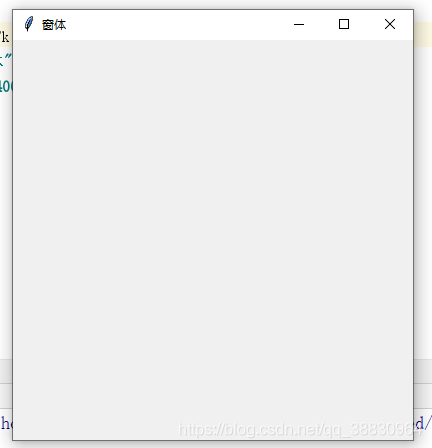
1、生成一个窗体: 1 2 3 4 5 6 7 8 import tkinter win = tkinter.Tk() win.title("窗体" ) win.geometry("400x400+200+50" ) win.mainloop()
实现效果:
1 2 3 4 5 6 7 8 9 10 11 12 13 14 15 16 17 18 19 20 21 22 23 24 25 26 27 28 29 import tkinter def func (): print ("hello" ) win = tkinter.Tk() win.title("窗体" ) win.geometry("400x400+200+50" ) button = tkinter.Button(win,text="按钮" ,command=func) button.pack() button2 = tkinter.Button(win,text="按钮2" ,command=lambda :print ("111111" )) button2.pack() button3 = tkinter.Button(win,text="按钮3" ,command=win.quit) button3.place(x=100 ,y=300 ) win.mainloop()
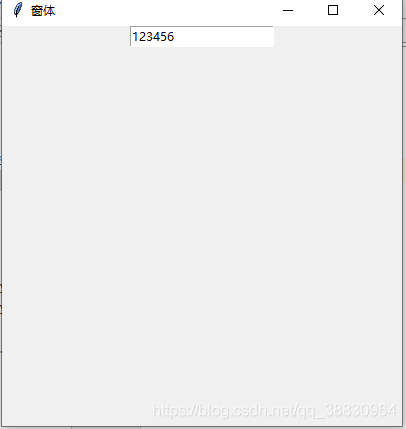
3、输入框(Entry) 1 2 3 4 5 6 7 8 9 10 11 12 13 14 15 16 17 18 19 20 21 22 23 24 25 26 27 28 import tkinter win = tkinter.Tk() win.title("窗体" ) win.geometry("400x400+200+50" ) ''' 输入控件,用于显示简单的文本内容 show:密文显示 entry = tkinter.Entry(win, show="*") # show="*" 可以表示输入密码 ''' e = tkinter.Variable() entry = tkinter.Entry(win,textvariable=e) entry.pack() e.set ("123456" ) print (e.get())print (entry.get()) win.mainloop()
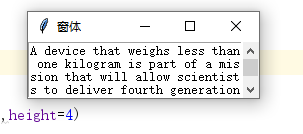
4、文本输入框(Text) 1 2 3 4 5 6 7 8 9 10 11 12 13 14 15 16 17 18 19 20 21 22 23 24 import tkinter win = tkinter.Tk() win.title("窗体" ) ''' 文本控件,用于显示多行文本 ''' scroll = tkinter.Scrollbar() text = tkinter.Text(win,width=30 ,height=4 ) scroll.pack(side = tkinter.RIGHT,fill=tkinter.Y) text.pack(side = tkinter.LEFT,fill=tkinter.Y) scroll.config(command=text.yview) text.config(yscrollcommand=scroll.set ) str = "A device that weighs less than one kilogram is part of a mission that will allow scientists to deliver fourth generation or 4G mobile coverage to the moon in 2019. If successful, the tiny device will provide the moon with its first ever mobile phone network. The lunar network will support high definition streaming of video and data between the moon and earth. The network is part of a mission to the moon. This is a project with the goal of landing the first privately paid for mission to the moon. The 4G mission is set to launch from Cape Canaveral in the United States on a space X Falcon 9 rocket in 2019. Mission to the moon intends to establish and test the first elements of a communications network on the moon. The scientists working on the project opted to build a 4G rather than a fifth generation or 5G network. This is because fifth generation networks are still in testing and trial phases. This means that a 5G network may not yet be stable enough to work on the moon’s surface." text.insert(tkinter.INSERT,str ) win.mainloop()
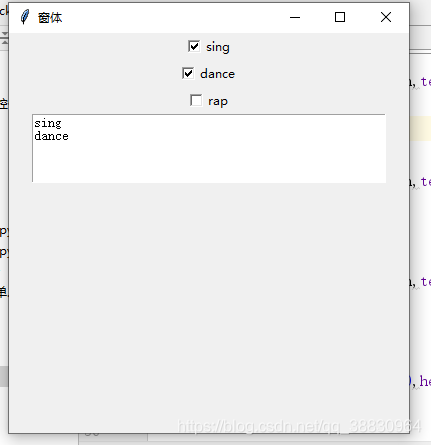
1 2 3 4 5 6 7 8 9 10 11 12 13 14 15 16 17 18 19 20 21 22 23 24 25 26 27 28 29 30 31 32 33 34 35 36 37 import tkinter def updata (): message="" if hobby1.get() == True : message += "sing\n" if hobby2.get() == True : message += "dance\n" if hobby3.get() == True : message += "rap\n" text.delete(0.0 ,tkinter.END) text.insert(tkinter.INSERT,message) win = tkinter.Tk() win.title("窗体" ) win.geometry("400x400+200+50" ) hobby1 = tkinter.BooleanVar() check1 = tkinter.Checkbutton(win,text="sing" ,variable=hobby1,command=updata) check1.pack() hobby2 = tkinter.BooleanVar() check2 = tkinter.Checkbutton(win,text="dance" ,variable=hobby2,command=updata) check2.pack() hobby3 = tkinter.BooleanVar() check3 = tkinter.Checkbutton(win,text="rap" ,variable=hobby3,command=updata) check3.pack() text = tkinter.Text(win,width=50 ,height=5 ) text.pack() win.mainloop()
效果图:
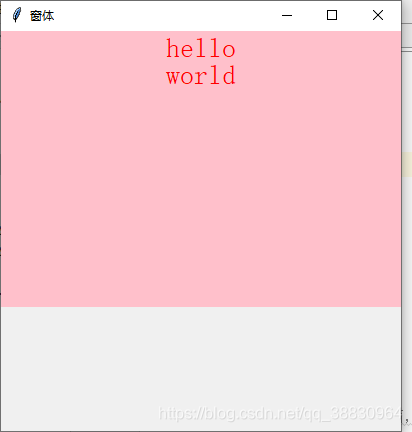
6、静态文本控件(Lable) 1 2 3 4 5 6 7 8 9 10 11 12 13 14 15 16 17 18 19 20 21 22 23 24 25 import tkinter win = tkinter.Tk() win.title("窗体" ) win.geometry("400x400+200+50" ) ''' 标签控件,显示文本: ''' label = tkinter.Label(win,text="hello world" , bg="pink" ,fg="red" ,font=("宋体" ,20 ), width=50 ,height=10 ,wraplength=100 , justify="left" ,anchor="n" ) label.pack() win.mainloop()
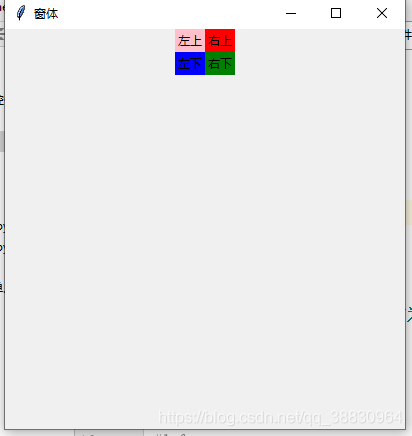
7、容器控件(frame) 1 2 3 4 5 6 7 8 9 10 11 12 13 14 15 16 17 18 19 20 21 22 23 24 25 26 27 28 29 30 31 import tkinter win = tkinter.Tk() win.title("窗体" ) win.geometry("400x400+200+50" ) ''' 框架控件 在屏幕上显示一个矩形区域,多作为容器控件,类似html中的盒子或块元素div ''' frm = tkinter.Frame(win) frm.pack() frm_1 = tkinter.Frame(frm) tkinter.Label(frm_1,text="左上" ,bg="pink" ).pack(side=tkinter.TOP) tkinter.Label(frm_1,text="左下" ,bg="blue" ).pack(side=tkinter.TOP) frm_1.pack(side=tkinter.LEFT) frm_r = tkinter.Frame(frm) tkinter.Label(frm_r,text="右上" ,bg="red" ).pack(side=tkinter.TOP) tkinter.Label(frm_r,text="右下" ,bg="green" ).pack(side=tkinter.TOP) frm_r.pack(side=tkinter.RIGHT) win.mainloop()
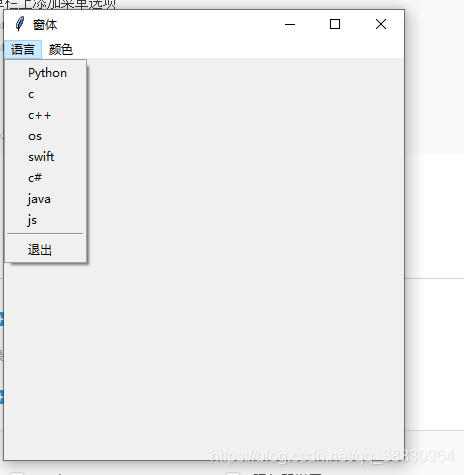
8、顶层菜单: 1 2 3 4 5 6 7 8 9 10 11 12 13 14 15 16 17 18 19 20 21 22 23 24 25 26 27 28 29 30 31 32 33 import tkinter win = tkinter.Tk() win.title("窗体" ) win.geometry("400x400+200+50" ) menubar = tkinter.Menu(win) win.configure(menu=menubar) def func (): print ("sunck" ) menu1= tkinter.Menu(menubar,tearoff=False ) for item in ["Python" ,"c" ,"c++" ,"os" ,"swift" ,"c#" ,"java" ,"js" ,"退出" ]: if item =="退出" : menu1.add_separator() menu1.add_command(label=item,command=win.quit) else : menu1.add_command(label=item,command=func) menu2 = tkinter.Menu(menubar,tearoff=False ) menu2.add_command(label="red" ) menu2.add_command(label="blue" ) menubar.add_cascade(label="语言" ,menu=menu1) menubar.add_cascade(label="颜色" ,menu=menu2) win.mainloop()
效果图:
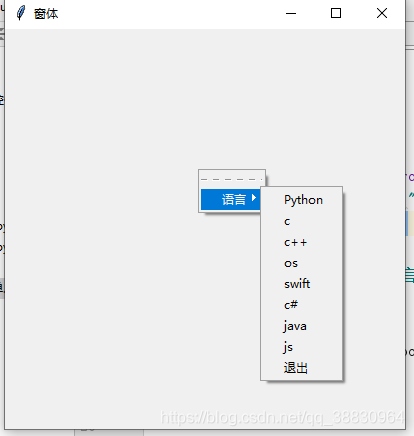
9、右键菜单 1 2 3 4 5 6 7 8 9 10 11 12 13 14 15 16 17 18 19 20 21 22 import tkinter win = tkinter.Tk() win.title("窗体" ) win.geometry("400x400+200+50" ) menubar = tkinter.Menu(win) menu = tkinter.Menu(menubar,tearoff=False ) for item in ["Python" ,"c" ,"c++" ,"os" ,"swift" ,"c#" ,"java" ,"js" ,"退出" ]: menu.add_command(label=item) menubar.add_cascade(label = "语言" ,menu=menu) def showMeun (e ): menubar.post(e.x_root,e.y_root) win.bind("<Button-3>" ,showMeun) win.mainloop()
效果图:
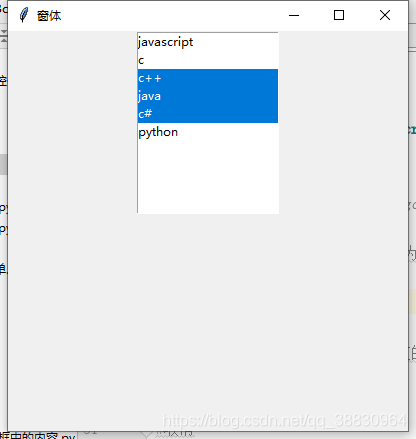
10、表单控件(listBox) 1 2 3 4 5 6 7 8 9 10 11 12 13 14 15 16 17 18 19 20 21 22 23 24 25 26 27 28 29 30 31 32 33 34 35 36 37 38 39 40 41 42 43 44 45 46 47 48 import tkinter win = tkinter.Tk() win.title("窗体" ) win.geometry("400x400+200+50" ) ''' 列表框控件,可以包含一个或多个文本框 作用:在listBox控件的小窗口显示一个字符串 ''' lb = tkinter.Listbox(win,selectmode=tkinter.BROWSE) lb.pack() for item in ["c" , "c++" ,"java" ,"c#" ,"python" ]: lb.insert(tkinter.END,item) lb.insert(tkinter.ACTIVE,"javascript" ) lb.select_set(2 ,4 ) print (lb.curselection()) print (lb.select_includes) win.mainloop()
1
2
3
4
5
6
7
8
9
10
11
12
13
14
15
16
17
18
19
20
21
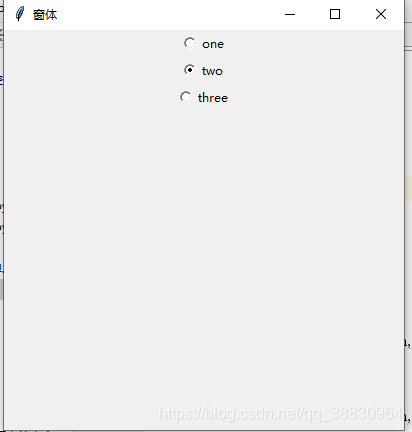
import tkinter def updata (): print (r.get()) win = tkinter.Tk() win.title("窗体" ) win.geometry("400x400+200+50" ) r = tkinter.IntVar() radio1 = tkinter.Radiobutton(win,text="one" ,value=1 ,variable=r,command=updata) radio1.pack() radio2 = tkinter.Radiobutton(win,text="two" ,value=2 ,variable=r,command=updata) radio2.pack() radio3 = tkinter.Radiobutton(win,text="three" ,value=3 ,variable=r,command=updata) radio3.pack() win.mainloop()
效果图:
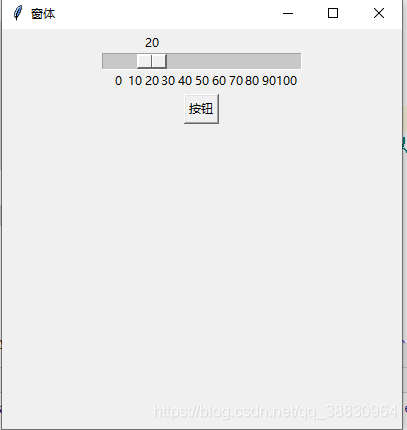
12、可拖拽控件(scale) 1 2 3 4 5 6 7 8 9 10 11 12 13 14 15 16 17 18 19 20 21 22 23 24 25 26 import tkinter win = tkinter.Tk() win.title("窗体" ) win.geometry("400x400+200+50" ) ''' 供用户通过拖拽指示器改变变量的值,可以水平,也可以竖直 ''' scale1 = tkinter.Scale(win,from_=0 ,to=100 ,orient=tkinter.HORIZONTAL, tickinterval=10 ,length=200 ) scale1.pack() scale1.set (20 ) def showNum (): print (scale1.get()) tkinter.Button(win,text="按钮" ,command=showNum).pack() win.mainloop()
效果图:
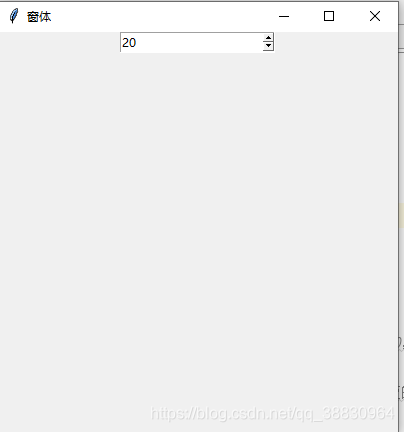
13、数值范围控件(Springbox) 1 2 3 4 5 6 7 8 9 10 11 12 13 14 15 16 17 18 19 20 21 22 23 24 25 26 27 28 29 import tkinter win = tkinter.Tk() win.title("窗体" ) win.geometry("400x400+200+50" ) ''' 数值范围控件 ''' def updata (): print (v.get()) v = tkinter.StringVar() sp =tkinter.Spinbox(win,from_=0 ,to=100 ,textvariable=v,command=updata) sp.pack() v.set (20 ) print (v.get()) win.mainloop( )
效果图: